Payment provider identity check
Scan to Pay is subject to the payment provider’s KYC requirements. The app checks your existing information and will prompt you if it needs anything else.
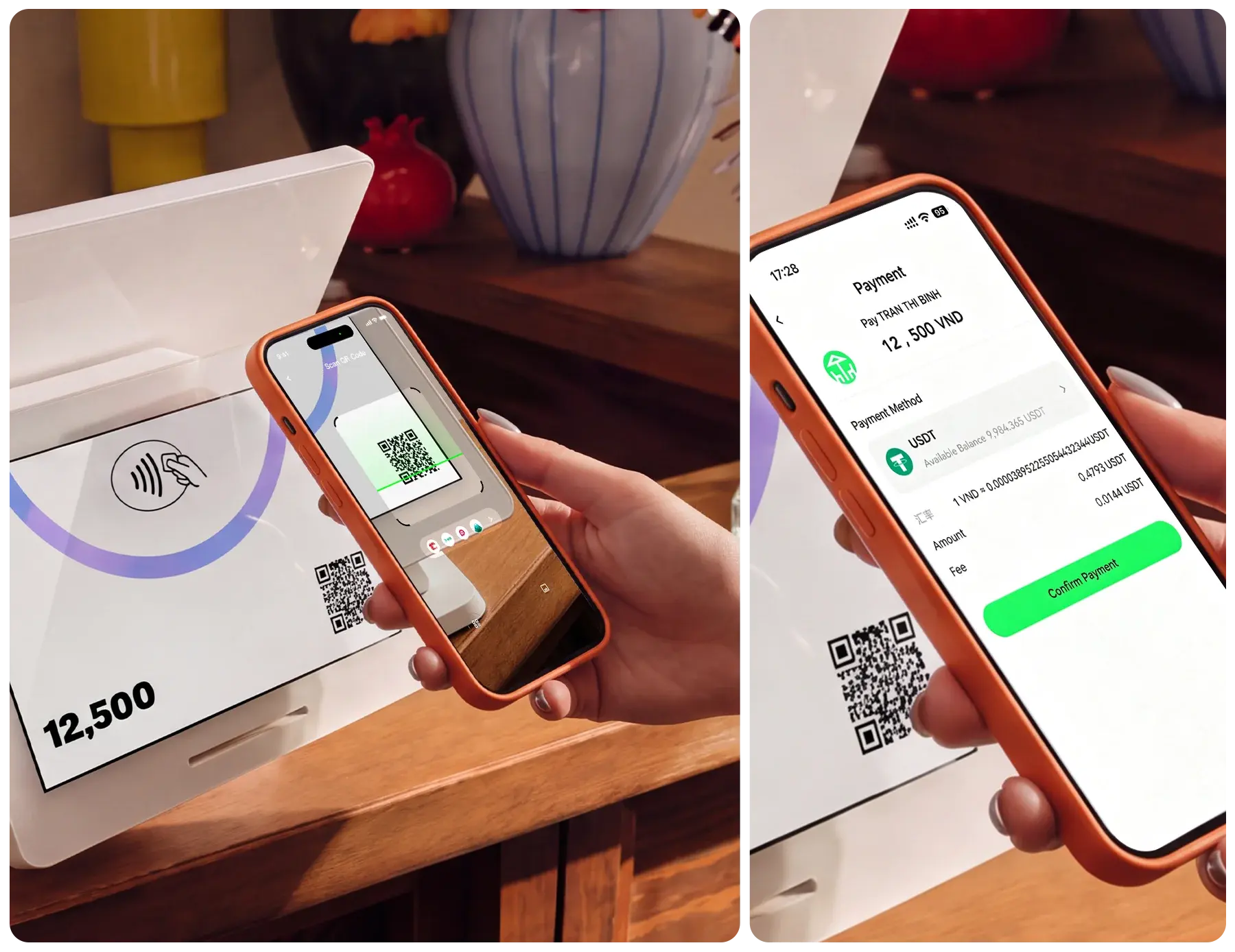
Open the DogPay app and scan a local merchant’s payment QR code. Pay straight from your wallet with USDT, USDC or other supported crypto without exchanging it first or opening a card.
Enter the amount for a static QR code. A dynamic QR code fills it in for you. Choose a code type to see the steps.
Payment demo
Open Scan to Pay in the DogPay app and frame a supported merchant QR code.
Amounts are illustrative. Check the app for available wallets, exchange rates and fees.
 BrazilPIX
 PhilippinesQRPh
 IndonesiaQRIS
 VietnamVietQR
 MalaysiaDuitNow QR
 South KoreaSeoul Pay / JejuPay
 ArgentinaQR 3.0
 PeruYape / Plin
 ColombiaBre-B
 CambodiaKHQR via Acleda Bank
 BoliviaQR Bolivia
 LaosBCEL OnePay
 MongoliaQPay
Scan to Pay is subject to the payment provider’s KYC requirements. The app checks your existing information and will prompt you if it needs anything else.
Review the merchant, local amount, payment currency, exchange rate and fees. Complete the app’s security check and link Google Authenticator if prompted.
Check that the QR code is valid and belongs to a supported merchant and payment network. Ask the merchant to check the code if it still won’t scan.
Switch between available wallets on the payment confirmation screen. Examples include USDT, USDC, DOGE, BTC, SOL and ETH. Check the app for the options available for your payment.
After scanning and confirming the local amount, the app shows the exchange rate, payment amount and fees for your selected wallet.
The app checks whether your existing information meets the payment provider’s requirements. Follow the prompts if it needs more information.
Open the DogPay app and scan a local merchant’s payment QR code. Pay straight from your wallet with USDT, USDC or other supported crypto without exchanging it first or opening a card.
Open the DogPay app and scan a local merchant’s payment QR code. Pay straight from your wallet with USDT, USDC or other supported crypto without exchanging it first or opening a card.